Cisco Routers

Cisco routers provide access to applications and services, and integrate technologies

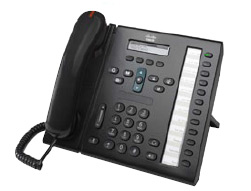
IP Phone - Cisco

IP phone takes full advantage of converged voice and data networks, while retaining the convenience and user-friendliness you expect from a business phone...

WAN - Cisco Systems

Transform your WAN to deliver high-performance, highly secure, and reliable services to unite campus, data center, and branch networks.

EtherChannel - Cisco Systems

EtherChannel provides incremental trunk speeds between Fast Ethernet, Gigabit Ethernet, and 10 Gigabit Ethernet. EtherChannel combines multiple Fast ...

Looking Toward the Future - Cisco Systems

Looking Toward the Future by Vint Cerf. The Internet Corporation for Assigned Names and Numbers (ICANN) was formed 9 years ago....

Pages

Showing posts with label IP Telephony VoIP. Show all posts

Friday, January 4, 2013

Cisco Unified IP Phones 6900 and 7900 series

Cisco Unified IP Phones offer the high-quality, reliable communications your business needs every day. They also add new capabilities that increase your ability to collaborate within the workplace. [Focus on Cisco Small Business Model]

Let's see the product catalog that can be used in both Cisco Small Business and Cisco Enterprise company: Cisco Unified IP Phones 6900 and 7900 Series 

CP-7975G
• Graphical color touchscreen display
• 8 lines
• Power over Ethernet
• 10/100/1000 Ethernet switch
CP-7965G
• Graphical color display
• 6 lines
• Power over Ethernet
• 10/100/1000 Ethernet switch
CP-7962G
• Grayscale graphical display
• 6 lines
• Power over Ethernet
• 10/100 Ethernet switch
CP-7945G
• Grayscale graphical display
• 2 lines
• Power over Ethernet
• 10/100/1000 Ethernet switch
CP-7942G
• Grayscale graphical display
• 2 lines
• Power over Ethernet
• 10/100 Ethernet switch
CP-7931G
• Graphical monochrome display
• 24 lines
• Power over Ethernet
• 10/100 Ethernet switch
CP-7911G
• Graphical monochrome display
• Single line
• Power over Ethernet
• 10/100 Ethernet switch
CP-7925G
• Graphical color display
• 6 lines
• Wireless
• Bluetooth capable
CP-7921G
• Graphical color display
• 6 lines
• Wireless
CP-7937G
• Backlit LCD display
• Power over Ethernet
• Support for external microphones
CP-7915=
• Grayscale LCD display
• 7962G, 7965G, and 7975G support
• 2 modules supported per IP Phone
CP-7916=
• Color LCD display
• 7962G, 7965G, and 7975G support
• 2 modules supported per IP phone
CP-6901-C-K9=
CP-6901-CL-K9=
CP-6901-W-K9=
CP-6901-WL-K9=
• Single line
• Power over Ethernet
  CP-6911-C-K9=
CP-6911-CL-K9=
CP-6911-W-K9=
CP-6911-WL-K9=
• Paper insert
• Single line
• Power over Ethernet
• 10/100 Ethernet switch
CP-6921-CL-K9=
CP-6921-W-K9=
CP-6921-WL-K9=
• Graphical monochrome display
• 2 lines
• Power over Ethernet
• 10/100 Ethernet switch
CP-6941-C-K9=
CP-6941-CL-K9=
CP-6941-W-K9=
CP-6941-WL-K9=
• Graphical monochrome display
• 4 lines
• Power over Ethernet
• 10/100 Ethernet switch
CP-6945-C-K9=
CP-6945-CL-K9=
CP-6945-W-K9=
CP-6945-WL-K9=
• Graphical monochrome display
• 4 lines
• Power over Ethernet
• 10/100/1000 Ethernet switch
CP-6961-C-K9=
CP-6961-CL-K9=
CP-6961-W-K9=
CP-6961-WL-K9=
• Graphical monochrome display
• 12 lines
• Power over Ethernet
• 10/100 Ethernet switch
Update the new one at Cisco.com: http://www.cisco.com/cisco/
Or Download Product Guide at Cisco Small Business Product Guide
Or Download Brochure at Cisco Unified IP Phone

Friday, December 21, 2012

Configuring Cisco IP Phone Extension Mobility in CME

The following is an explanation of Ciso VoIP Extension Mobility (Communications Manager Express) and describes features in Cisco Communications Manager Express (CME) that provide support for phone mobility for end users.
Cisco Communications Manager Express
The network topology diagram shows a setup example (Cisco Extension Mobility)
Benefit of Cisco IP Phone Extension Mobility that serve a user login service allows phone users to temporarily access a physical phone other than their own phone and utilize their personal settings, such as directory number, speed-dial lists, and services, as if the phone is their own desk phone. The phone user can make and receive calls on that phone using the same personal directory number as is on their own desk phone.

How to Enable Extension Mobility by perform the following tasks to enable Extension Mobility in Cisco CME:
Before beginning, please note that serious damage can be caused by entering inappropriate commands. Please be careful when altering the configuration of any router.*

1. Set up and associate the physical phone.
   The easiest way to avoid searching through lines of configuration or hunting an automatically registered phone is to set up the phone association before plugging it in to a switchport on the network. In other words, give the router a "heads up" that the phone is about to be initialized.
THHQRV1-3845# configure terminal
THHQRV1-3845(config)# ephone 1                              #Configuration mode for ephone      
THHQRV1-3845(config-ephone)# mac-address 11aa.22bb.33cc   #The MAC address for the phone
THHQRV1-3845(config-ephone)# button 1:5                #Assign buttons to the phone by using the ephone-dn
THHQRV1-3845(config-ephone)# type 7962                #Set the phone type
THHQRV1-3845# show ephone ?                                  #Show a list of supported phone types.

2. Create Voice user profile for Extension Mobility   
    voice logout-profile To enter voice logout-profile configuration mode to create a logout profile and define the default appearance for a Cisco Unified IP phone enabled for Extension Mobility, use the voice logout-profile command in global configuration mode. To delete an logout profile, use the no form of this command:
THHQRV1-3845# configure terminal
THHQRV1-3845(config)# voice logout-profile 1               #Create logout profile
THHQRV1-3845(config-logout-profile)# pin 123456       #Set a PIN to be used by a phone user
THHQRV1-3845(config-logout-profile)# user logout password logout
       
     To configure a user profile for a phone user who logs into a Cisco IP phone that is enabled for Extension Mobility, perform the following steps:
THHQRV1-3845# configure terminal
THHQRV1-3845(config)# voice user-profile 1               
THHQRV1-3845(config-user-profile)# user 7222 password 45678 
THHQRV1-3845(config-user-profile)# number 7222 type normal
THHQRV1-3845(config-user-profile)# speed-dial 1 90892046844 label "On Call"  

3. Creating Directory Numbers
    Create an ephone-dn by using the following commands after logging into and enabling your router:
THHQRV1-3845# configure terminal
THHQRV1-3845(config)# ephone-dn  1  dual-line        
THHQRV1-3845(config-ephone-dn)# number 7222
THHQRV1-3845(config-ephone-dn)# pickup-group 10            
THHQRV1-3845(config-ephone-dn)# description Sumuscha T
THHQRV1-3845(config-ephone-dn)# name Sumuscha Teesr
THHQRV1-3845(config-ephone-dn)# call-forward busy 7111 
THHQRV1-3845(config-ephone-dn)# call-forward noan 90811711942 timeout 18     

4. Check your running configuration.
    You can check your running configuration (ephone-dn, ephone - and other things)
THHQRV1-3845#show running-config
THHQRV1-3845#show run | beg ephone

Download Sample Configurution VoIP Cisco IP Phone CME CUE visio, pdf documents

Tuesday, December 18, 2012

Configuration and Settings Cisco VoIP Tie Line

This article explains how to configure VoIP on Cisco router and composed of the following sections related to VOIP. I have shown following scenarios, configuration, diagrams (and Visio stencile) to make you understand and adapt it to your work.

Cisco IP Tie Line, Tie Trunk
The Cisco + PBX diagram illustrates the topology of this connection example.
Below are some of the VoIP traffic scenario;
     1. HQ Office -> any IP Telephony site: Since we are on VoIP, traffic will route to available link. In case there will be an outage on Verizon MPLS all traffic including voice will be routed to Brach Office VPN. This might impact a lot on the voice quality because Internet Link will not guaranteed or priority on VPN.

     2. Branch Office -> HQ Office site VoIP call: In case of link outage between two offices. Voice traffic will reroute to VPN -> MPLS before it reaches the HQ Office PBX. Again no guarantee on voice quality because of the path that it will take.

     3. Branch Office -> IP Telephony via HQ Office PBX routing: Outages on either E1 link between two office or Verizon MPLS will “Greatly” impact the quality of voice. Meaning if Branch Office call IP Telephony voice traffic will go to HQ Office, then HQ Office will route call to Branch Office again since MPLS is down, then route to VPN.

The following example shows  the configuration VoIP for Tie Line connection between 2 site with PABx  
hostname BRCM1-3845 hostname HQRV1-7206VXR
isdn switch-type primary-qsig
voice-card 1
no dspfarm
!
controller E1 1/1
pri-group timeslots 1-17
description --- QSIG Trunk to Nortel PBX ---
card type e1 2
!
isdn switch-type primary-net5
voice-card 0
no dspfarm
!
controller E1 0/2/0
pri-group timeslots 1-17
description --- Inbound E1 interface ---
!
controller E1 0/2/1
pri-group timeslots 1-17
description --- Outbound E1 interface ---
!
controller E1 2/0
pri-group timeslots 1-31
description ISDN/PRI E1 - TelecomAsia
vlan internal allocation policy ascending
interface Loopback0
description Loopback for BRCM1-3845
ip address 176.40.203.248 255.255.255.255
no ip redirects
no ip unreachables
no ip proxy-arp
no ip mroute-cache
interface Loopback0
description Hostname:HQRV1-7206VXR
ip address 176.40.203.222 255.255.255.255
no ip redirects
no ip proxy-arp
ip route-cache flow
no ip route-cache cef
no ip mroute-cache
h323-gateway voip interface
h323-gateway voip id SGDCGK1 ipaddr 176.44.1.252 1719
h323-gateway voip h323-id HQRV1-7206VXR
h323-gateway voip tech-prefix 1#
h323-gateway voip bind srcaddr 176.40.203.222
interface FastEthernet0/0
description Connected to LAN
no ip address
no ip redirects
no ip unreachables
no ip proxy-arp
ip nbar protocol-discovery
ip pim sparse-dense-mode
no ip route-cache cef
no ip route-cache
no ip mroute-cache
speed 100
full-duplex
interface FastEthernet0/0
description *** OFFICE ETHERNET SEGMENT, THAILAND***
ip address 176.40.200.210 255.255.255.252
no ip proxy-arp
ip pim sparse-dense-mode
no ip route-cache
no ip mroute-cache
ip policy route-map Offshore
duplex full
no mop enabled
interface Serial1/1:15
no ip address
encapsulation hdlc
isdn switch-type primary-qsig
isdn incoming-voice voice
no cdp enable
interface Serial0/2/0:15
no ip address
encapsulation hdlc
isdn switch-type primary-net5
isdn protocol-emulate network
isdn incoming-voice voice
no cdp enable
!
interface Serial0/2/1:15
no ip address
encapsulation hdlc
isdn switch-type primary-net5
isdn incoming-voice voice
no cdp enable
voice-port 1/1:15
cptone TH
voice-port 0/2/0:15
!
voice-port 0/2/1:15
dial-peer cor custom
!
dial-peer voice 1000 pots
destination-pattern 8596[2-5]...
progress_ind setup enable 3
progress_ind alert enable 8
direct-inward-dial
port 1/1:15
forward-digits 7
!
dial-peer voice 10001 voip
destination-pattern 8T
session target ipv4:176.40.203.230
dtmf-relay h245-alphanumeric
ip qos dscp ef signaling
no vad
dial-peer voice 1000 pots
description --- IPT Inbound to Loop ---
preference 1
destination-pattern 8[2-9]......
progress_ind setup enable 3
progress_ind alert enable 8
direct-inward-dial
port 0/2/0:15
forward-digits 7
!
dial-peer voice 2000 pots
description --- IPT Outbound from Loop ---
preference 2
incoming called-number .
direct-inward-dial
port 0/2/1:15
!
dial-peer voice 5127 voip
description --- IPT Peer to HQ via HQRV1 ---
huntstop
preference 3
destination-pattern 512[6-7]...
session target ipv4:176.40.203.222
dtmf-relay h245-alphanumeric
ip qos dscp ef signaling
no vad
!
gateway
timer receive-rtp 1200
Cisco_Icons_Visio
To download the Visio Stencils, sample full configuration go here icons, configuration

Sunday, December 9, 2012

Cisco VoIP Networking Design/IP Telephony

Most of worldwide companies has begun using new telephone sets on a system based on VoIP, Internet Protocol Telephony (IPT), a method for sending voice over the data network instead of through a separate phone network.

This new technology, already adopted by a majority of Fortune 500 companies, offers numerous benefits in terms of cost savings, productivity increases and accommodation of future business growth. In the giant companies especially global companies, VoIP [IP Telephony] is expected to provide a solution to many current telephony challenges including; capacity limitations, voicemail reliability issues, aging equipment and increasing scarcity of vendor expertise in earlier technologies like PBX.

I would like to show you the VoIP system as a diagram that would be benefit for your business.


Use the mouse over the icon (SAP, Mail, Internet, other..) then click you will see the packet flow or download file

IP Phone
The previous diagram illustrates the digital-to-digital scenario
 
IP Phone
The previous diagram illustrates the digital-to-analog scenario
 
Conference call
 
VoIP Design
An end-to-end simple VoIP network architecture
 

You can use it to adapt with your companies in order to gain more utilization in term of current technology as much as you can


Download Sample Enterprise Network Diagram with FLASH PRESENTATION here CiscoVoiceTraffic
 

Saturday, December 8, 2012

Cisco IP Phone User Guide

Cisco IP Phone Guide

In this user guide you will find detailed information on using your Cisco IP phone. Your Cisco IP phone 7941G, 7942G, 7945G, 7961G, 7962G, 7965G, 7970 is a full-featured, multi-line telephone replacing the traditional analog phone.
  1. Line Appearance Buttons - Indicates your extension number(s).
  2. Foot Stand Button - Adjusts the angle of your phone base.
  3. Display button - Awakens the touchscreen from sleep mode or disables it for cleaning.
  4. Messages Button – Allows you to use the voice message system.
  5. Directories Button - Opens/Closes the Directories menu which allows you to see missed calls, received call, placed calls, and faculty/staff directories.
  6. Help Button – Allows you to use the Help Menu.
  7. Settings Button – Allows you to change telephone settings such as contrast and ringer sound, network configuration, and status information.
  8. Services Button - Provides access to telephone services if available.
  9. Volume Button - Increases or decreases the volume of the handset or headset, speakerphone, and the ringer volume.
  10. Speaker Button - Toggles the speaker on or off for conference calls in your office.
  11. Mute Button – Turns the mute feature on or off.
  12. Headset Button – Turns the headset on or off for those who use a headset.
  13. Navigation Button - Allows you to scroll through menus, highlight items and with the soft key activate the highlighted items.
  14. Keypad - Allows you to dial telephone numbers, enter letters, and close menu items.
  15. Soft Key Buttons - Each activates the item (soft key) listed above on a menu.
  16. Handset Light Strip - Indicates that you have an incoming call and/or a new voice message.
  17. Phone Screen – Gives you the time, date, your phone number, caller ID, and other features like redial, new call, etc.
Phone Features
Muting a Call:
     1. Press the MUTE button
             a. To end the mute feature, press the MUTE button again

Placing a Call on Hold
     1. Press the Hold soft key.
             a. To return to the call, press the Resume soft key.
         Tip: If multiple calls are on hold, Scroll with the arrows to select the desired call before you press the Resume key.

Transferring a Call to another telephone:
      1. Press the Transfer soft key
             a. This places the call on hold
      2. Dial the number to which you want to transfer the call
      3. When the number rings, press Transfer again; or when the party answers announce the call and then press Transfer
      4. Hang up if the call is accepted.
      Note: If the party refuses to accept the call, return to the original call by pressing the Resume soft key.

Transferring a Call Directly to a Voice Mailbox
       1. Press the Transfer soft key.
       2. This places the call on hold.
       3. Press the * and Dial the extension to which you want to transfer the call
       4. When the voicemail box answers, press Transfer again

Call Forwarding
   To forward your calls:
       1. Press the CFwdAll soft key.
       2. When the beep tone is heard, enter the number to which you wish to forward.
                a. Forwarding to Voicemail: Press the * and Dial the extension to which you want to transfer the call
                b. Forwarding to on-campus extension: Dial the 4-digit extension
                c. Forwarding to off-campus number: Dial 8 - 1 - area code - phone number
        3. When finished, verify Forwarded to xxxxxxxx is displayed above the LCD screen.
   To cancel call forwarding:
         1. press the CFwdAll soft key.

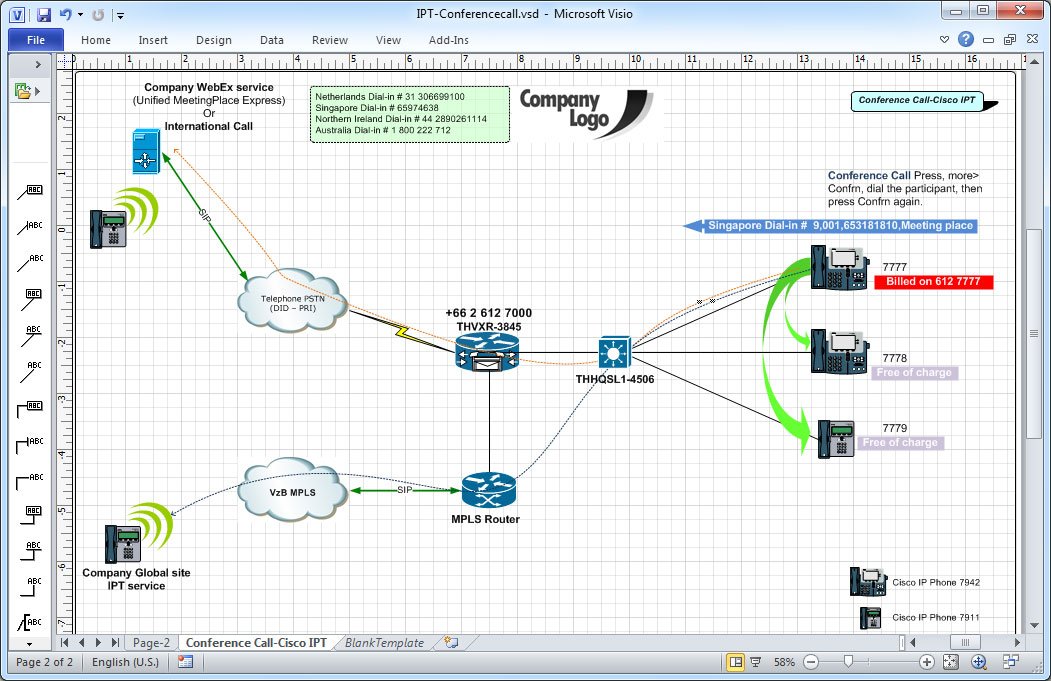
Placing a Conference Call
   To turn a call into a conference call:
         1. During a call, press the more option and then you should choose the Confrn soft key. (This allows you to place the party on hold while you contact others.)
         2. Place a call to another number to include others on the conference call.
         3. When the call connects, press Confrn again to add the other party to the conference call.
            Notes:
                 a. To place a conference call on hold - Press Hold.
                       i The other parties cannot talk among themselves.
                       ii To avoid disrupting the other callers, consider muting the call instead.
                              -To mute the call - Press Mute.
                 b. To place a conference call on the speakerphone - press Speaker.
                       i Press the Mute button to mute the speakerphone. The conference parties cannot hear you but you can hear them.

Cisco Conference Phone Feature
The previous diagram illustrates the Cisco Conference Call Scenario.
illustrates the IP Phone Manual Guide.
The previous manual illustrates the IP Phone Manual Guide.

Cisco IP Phone Manual 7940/7960 Models download the pdf file here

Sunday, December 11, 2011

Cisco Telephony Providing...

     Cisco Telephony Providing The Very Best In Communications Hardware. Every modern business has come to depend upon up to date information and communication technology hardware within the last couple of decades. 

      The manner in which businesses operate has noticeably changed due to modern communications having advanced. There are not many aspects of the business world which have not developed with such improvements. For a business to keep up their presence in the market they have to make sure that the their hardware and software is both current and fully maintained.

Wednesday, December 7, 2011

Voice VLAN QoS Policy


       The following is a basic QoS Policy for a branch office router to prioritize voice traffic . The assumption made is that the voice traffic is marked at source (i.e. ip phones). This is an example of a LLQ (Low Latency Queue) in which voice traffic is placed in a priority queue and all other traffic is placed in a WFQ (Weighted Fair Queue). DMVPN is being used for connectivity back to the main office so we have to use the qos pre-classify command to ensure QoS is applied before data is encrypted and markings on the tunneled packets are preserved. Congestion management and avoidance is implement using a WFQ (Weighted Fair Queue) and WRED (Weighted Random Early Discard) for all non voice traffic.


class-map match-all VOICE
match ip dscp ef
class-map match-any CALL-SIGNALING
match ip dscp cs3
class-map match-any CRITICAL-DATA
match ip dscp cs6
match ip dscp af21 af22
match ip dscp cs2
policy-map WAN-EDGE
class VOICE

priority 256
class CALL-SIGNALING
bandwidth 32
class CRITICAL-DATA

Tuesday, November 15, 2011

IP Telephony FAQs


What does IP telephony mean?
    IP (Internet Protocol) telephony, or called IPT, is a method for taking analog audio signals, like the kind you hear when you talk on the phone, and turning them into digital data that can be transmitted over the Internet.  In the company, the digitized telephone traffic between Company locations will be carried over our WAN and LANs instead of the Public Telephone Network or the Internet.